

I write this guide to give clear, practical steps I use to keep my information and data more secure. I avoid jargon and focus on habits that fit real life in the United States today. My plan centers on four simple routines I call the Core 4: long unique passwords (I prefer 16+ characters and a password manager), multifactor options, automatic updates, and watching for phishing.
I add resilience with the 3‑2‑1 backup rule: three copies, two media, one offsite. I also treat public internet access carefully. At home I change default router passwords, and I avoid signing into sensitive accounts on public Wi‑Fi. When needed, I use a VPN or my phone hotspot and turn off auto-connect for networks and Bluetooth.
I know no one is completely hackproof, but I raise my safety by following these tested routines. This guide will include checklists, real tips I rely on, common mistakes to avoid, and warning signs I watch for so you can apply the same steps with confidence.
Get your copy now. PowerShell Essentials for Beginners – With Script Samples – Limited Edition
Get your copy now. PowerShell Essentials for Beginners – With Script Samples – Limited Edition
Main Points
- Use long, unique passwords and a trusted password manager.
- Enable multifactor codes, biometrics, or physical keys for critical accounts.
- Keep devices updated and enable automatic updates when possible.
- Follow 3‑2‑1 backups to safeguard important data.
- Avoid sensitive logins on public Wi‑Fi; prefer a VPN or hotspot.
- Report and delete phishing messages; never reply to “mistaken” texts.
Why I’m Focusing on Cybersecurity Basics Right Now
Right now I double down on fundamentals since threats target people and organizations every day. A cyberattack happens about every 39 seconds, and phishing keeps fueling data breaches that can cost millions.
I act on clear, fast wins: enabling multifactor authentication, turning on automatic updates, and using long, unique passwords. These steps cut exposure quickly and stop most automated account‑takeover attempts.
Outdated apps leave open doors. Attackers use emotional hooks in email, texts, and calls to make me rush. I train myself to pause and verify before I click.
“Small habits compound into real resilience; recovery matters as much as prevention.”
I rely on the 3‑2‑1 backup rule so I can restore data and personal information after ransomware or crashes. Layered defenses and regular routines give me practical safety in a world where accounts and messages flow through the internet nonstop.
- Quick wins: MFA, auto‑updates, and solid passwords.
- Daily habits: pause on urgent messages and check sources.
- Resilience: 3‑2‑1 backups and layered recovery plans.
- My Foundation: Key Terms and Tools I Rely On.
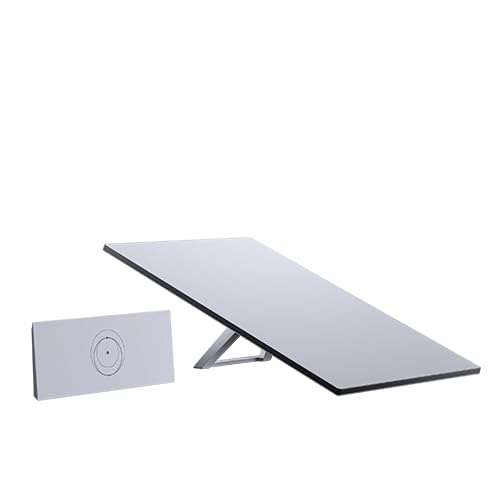

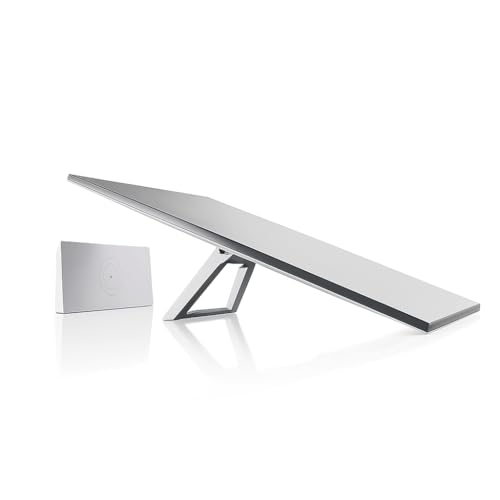
I build simple routines around a few reliable systems that handle traffic and threats.
Firewall, VPN, and antivirus: the everyday security trio
Firewall filters incoming and outgoing traffic to allow approved connections and block suspicious activity.
VPN encrypts internet traffic and hides my device’s public IP address when I’m on untrusted networks.
Antivirus with real‑time scanning removes malware; AV‑TEST notes 450,000+ new malicious programs daily, so I keep scanning active.
IP and MAC addresses, DNS, and why they matter for safe browsing
An IP address identifies a device on a network. A MAC address uniquely labels a device’s network interface on local LANs.
DNS translates domain names into IP addresses so browsers reach the right websites. Rogue DNS or shady hotspots can misdirect connections.
- I keep a firewall enabled to limit what reaches my devices.
- I use a VPN on public Wi‑Fi so my internet traffic is encrypted.
- I run reputable antivirus with real‑time protection and update tools often.
- I prefer browsers and extensions that block trackers and abusive media and only install software I need.
| Component | Role | Why I use it |
|---|---|---|
| Firewall | Traffic filter | Limits unwanted connections to my devices |
| VPN | Encrypted tunnel | Masks public IP address and shields internet traffic |
| Antivirus | Malware scanner | Detects threats and protects information and media |
| DNS | Name resolution | Ensures browsers find the right websites and addresses |
Cybersecurity Basics: Protect Your Online World — My Step-by-Step Actions

I follow a short, repeatable routine that locks down accounts and reduces daily risk.
Creating strong, unique passwords and using a password manager
I make long, unique passwords—16+ characters—then store them in a trusted password manager. This keeps me from reusing credentials and makes logins simple without memorizing complex strings.
Enabling multifactor authentication on email, banking, and social media
I turn on authentication with MFA wherever possible. I use one‑time codes, biometrics, or a physical key and never share codes with anyone.
Keeping operating systems, browsers, and apps updated automatically
I enable automatic updates for my software on phones, laptops, and desktops. Patches close known holes fast so I leave fewer openings for attacks.
Spotting phishing scams, suspicious links, and fake messages
I slow down when a message pressures me. I hover over links to check destinations and never open unexpected attachments. I report and delete obvious phishing instead of replying.
| Action | What I do | Benefit |
|---|---|---|
| Passwords | Use 16+ chars, unique | Stops credential reuse |
| Password manager | Store & generate logins | Easy, secure access |
| MFA | Enable for key accounts | Blocks account takeover |
| Auto-updates | Turn on for OS & apps | Patch vulnerabilities fast |
Quick tips: unique credentials, MFA, auto‑updates, and link hygiene help me stay safe online with minimal effort each day.
Today’s Common Threats I Watch For

I track common attack types so I can respond quickly when something looks off.
Malware families I watch
I watch five main malware behaviors. Viruses attach to programs and spread when run.
Worms self‑replicate across a network. Trojans hide as useful software to trick me into installing them.
Adware shows unwanted ads and tracks activity. Spyware monitors keystrokes and browsing in secret.
Phishing and social engineering
Phishing arrives as convincing emails, texts, or calls that mimic real services.
I stay alert for baiting, vishing phone requests, and smishing texts that push urgency.
Interception and service disruption
Man‑in‑the‑middle attacks intercept traffic on insecure Wi‑Fi or fake hotspots.
Denial‑of‑service floods websites to make services unreachable; it can still harm my access to tools.
- I recognize malware families so I can spot symptoms and limit damage to my data.
- I avoid clicking unsolicited links and open sites from bookmarks instead.
- I use VPN and encryption on untrusted network connections to reduce interception risk.
- I keep antivirus and updates active as a basic security baseline against these threats.
| Threat | Behavior | Common sign |
|---|---|---|
| Virus | Attaches to programs | Slow apps after opening files |
| Worm | Self‑replicates over network | Unexplained traffic spikes |
| Trojan | Mimics legit software | Unexpected installers |
| Adware / Spyware | Ads, tracking, hidden monitoring | Popups and privacy gaps |



My Account and Password Hygiene to Stay Safe Online
My starting point is simple: I stop reuse and make each login its own fortress.
I create long passwords, aiming for 16+ characters and true randomness. I avoid recycled tweaks like adding “2025” or a symbol to an old password. Those patterns are easy to guess and defeat the point of a strong password.
I refuse to use the same password across accounts. Unique passwords reduce the blast radius if one site leaks data. I also separate recovery answers so attackers can’t piece together access from public details.
Using a password manager and checking for breaches
I rely on a password manager as my single source of truth. It generates and stores complex credentials so I don’t have to memorize them. This lets me use truly random entries for each account.
I check my email address regularly with a breach notification service like Have I Been Pwned. If an address or password shows up, I rotate the exposed credential immediately and enable MFA where available.
- I build strong passwords with length and randomness and never reuse them across accounts.
- I keep a password manager so complex passwords are manageable.
- I check breach lists and rotate exposed passwords at once.
- I store recovery steps securely and separate critical account emails from marketing lists.
- I schedule credential reviews and prune unused accounts to reduce risk.
| Task | What I do | Why it matters |
|---|---|---|
| Create passwords | Use 16+ chars, random | Lowers chance of brute force and guessing |
| Password manager | Generate, store, autofill | Makes unique passwords practical |
| Breach checks | Monitor email address, rotate creds | Limits damage after leaks |
| Recovery planning | Document steps, use unique answers | Speeds safe account recovery |
How I Secure My Devices, Software, and Networks
I make securing my phones, tablets, and laptops a habit I can finish in minutes each week. Small checks—updates, scans, and router tweaks—close many common gaps and keep daily life running smoothly.
Automatic updates for phones, tablets, laptops, and apps
I enable automatic updates across operating systems and key software so patches install without extra thought. This reduces known vulnerabilities in browsers, apps, and background services.
Antivirus with real-time protection and a monitored firewall
I run reputable antivirus with real‑time protection and keep my firewall active. The antivirus watches for new threats, while the firewall monitors traffic and blocks suspicious connections to a device.
Safer Wi‑Fi habits: home router settings, public hotspots, and VPN
I review router settings, change default credentials, and update firmware. On public Wi‑Fi I avoid sensitive logins and prefer a VPN or my phone’s hotspot for banking or email.
Get your Stress Relief now! Change your focus and have something to care about.
Limited Editions

Get your Stress Relief now! Change your focus and have something to care about.
Limited Editions
Pop-up blocking and safer browsers to reduce exploit risk
I turn on pop‑up blocking and use privacy‑focused browsers and extensions. I install only trusted tools and remove apps I no longer need to shrink my attack surface.
- Quick checklist: auto updates, real‑time AV, router hardening.
- Disable auto‑connect for Wi‑Fi and Bluetooth to avoid accidental joins.
- Use a VPN on untrusted networks and keep firmware current.
| Measure | What I do | Why it helps |
|---|---|---|
| Automatic updates | Enable for OS and software | Closes known holes quickly |
| Antivirus + firewall | Real‑time scans; monitor traffic | Detects malware and blocks suspicious connections |
| Router & Wi‑Fi | Change defaults; update firmware | Hardens home network and reduces misconfigurations |
| Browser & pop‑ups | Block pop‑ups; use privacy tools | Reduces drive‑by downloads and tracking |
Protecting My Privacy and Identity on Social Media and Beyond
I treat every new app request as a question: is this data needed or just convenient? I configure privacy settings when I create accounts and again after major updates.
I regularly audit app permissions and delete apps I no longer use. I limit who sees posts and tighten profile settings so strangers cannot browse details.
Reviewing account settings and limiting data sharing
I set profiles to friends only when possible and remove public contact info. I store minimal personal information in profiles and avoid linking accounts that widen exposure.
Sharing with care to reduce digital footprint
I think twice before posting travel plans or photos that reveal routines. When I must share, I choose private groups or direct messages.
“Less data shared now makes identity recovery faster if something goes wrong.”
Clearing cookies, cache, and using private modes
I clear cookies and cache on a schedule and use private browsing for banking or sensitive sessions. I also consider VPNs for extra privacy on untrusted networks.
- I review privacy settings and restrict who can see posts on social media.
- I limit personal information in public posts and DMs and avoid sharing precise locations.
- I audit app permissions and remove apps that collect excess data.
- I clear cookies and cache regularly and use private modes on websites when needed.
- I ignore unsolicited text conversations that could be entry points for phishing scams.
- I apply the principle of least data: give only what’s required for a service to work.
- I monitor for identity misuse and secure recovery channels with MFA and strong settings.
| Action | What I do | Why it helps |
|---|---|---|
| Privacy settings | Set to friends or private; limit profile fields | Reduces who can access personal information |
| App permissions | Audit and remove unneeded access | Stops excess data collection by media and apps |
| Cookies & cache | Clear regularly; use private mode | Limits tracking across websites |
| Unsolicited texts | Ignore or block and do not reply | Prevents opening conversations that lead to phishing scams |


Backing Up My Data the Smart Way
I treat backups as insurance: they must be current, offsite, and tested. That mindset makes it easy for me to schedule backups and keep them useful when I need them most.
Using the 3‑2‑1 rule with cloud and external drives
I follow the 3‑2‑1 rule: three copies of my data, on two different media, with one copy offsite. I combine cloud services and external drives so I get fast local restores and resilient offsite copies.
I keep critical records—like email archives and tax documents—in structured folders to simplify recovery. Encrypting backup drives and protecting access to backup tools with MFA lowers the risk to sensitive information.
Testing restores so ransomware and crashes don’t win
I schedule backup jobs on my systems and verify they finish rather than assume they ran. Regular test restores prove the backups are usable and turn a passive copy into real safety.
- I label drives, rotate one offsite, and check capacity so growth doesn’t break the routine.
- I avoid using public computers for personal accounts and always log out if I must use them.
- Simple tips like test restores and status checks help me stay safe and recover fast after a network or hardware failure.
Conclusion
In closing, I focus on practical habits that make staying safe a routine. strong.
Recap: I use long, unique passwords in a manager, enable multifactor authentication on key accounts, and keep software and operating systems updated automatically.
I watch emails and links for phishing, avoid replying to “mistaken” texts, and report suspicious messages in my client. I log out on public computers and prefer a phone hotspot or VPN on untrusted Wi‑Fi.
I follow the 3‑2‑1 backup rule and test restores so I can recover data fast. I review one area each week—accounts, authentication, updates, backups, or privacy settings—to keep pace with evolving threats.
FAQ
What are the first steps I take to secure my accounts and data?
I start by creating long, unique passwords for each account and storing them in a trusted password manager such as 1Password, Bitwarden, or LastPass. I enable multifactor authentication (MFA) on email, banking, and social media accounts, update recovery information, and run a breach check using Have I Been Pwned or built-in password-check features.
How do I choose and use a password manager safely?
I pick a reputable manager with zero-knowledge encryption, strong reviews, and regular updates. I protect the vault with a single strong master password and enable MFA on the manager itself. I avoid storing sensitive notes in plain text and keep automatic backups enabled when the vendor supports encrypted sync across my devices.
What is multifactor authentication and why is it important?
MFA adds a second verification step beyond a password, like a time-based code (using Google Authenticator or Authy), a hardware key (YubiKey), or SMS as a last resort. I use MFA because it blocks most account takeovers even if a password is leaked.
How often should I update my operating system, browser, and apps?
I set updates to install automatically wherever possible. For critical systems, I allow automatic security patches daily or weekly. Regular updates close vulnerabilities that attackers exploit, so I don’t delay installing them on phones, tablets, laptops, and routers.
What tools do I run to protect my devices from malware?
I use an antivirus with real-time protection and a monitored firewall. On Windows, I keep Microsoft Defender active and consider a third-party AV for layered protection. On macOS and Android, I choose vetted apps from reputable vendors and enable built-in protections like Gatekeeper and Play Protect.
How can I tell if an email or message is a phishing attempt?
I look for mismatched sender addresses, urgent demands, poor spelling, suspicious links, and unexpected attachments. I hover (without clicking) to preview URLs, verify requests with the sender via a separate channel, and never provide credentials or payment info from a link in an unsolicited message.
Are public Wi‑Fi networks safe, and what precautions do I take?
Public Wi‑Fi can be risky. I avoid accessing banking or sensitive accounts on open hotspots. I use a reputable VPN like NordVPN or ExpressVPN when I need to connect, enable the device firewall, and prefer my cellular connection for critical tasks.
What are common signs my device may be compromised?
I watch for sudden slowdowns, unexplained pop-ups, unknown apps, unusual battery drain, unexpected network activity, and unauthorized account changes. If I suspect compromise, I disconnect from the network, run full scans, change key passwords from a clean device, and restore from backups if needed.
How do I back up my data so I can recover from ransomware or hardware failure?
I follow the 3‑2‑1 rule: keep three copies of important data, on two different media types (internal drive and external SSD or NAS), with one copy stored offsite or in an encrypted cloud service like Google Drive or Dropbox with versioning. I also test restores regularly to ensure backups work.
What are best practices for privacy on social media?
I review and tighten privacy settings on platforms like Facebook, Instagram, and X (Twitter), limit who can see posts, remove unnecessary personal details, and turn off third-party app access. I avoid posting sensitive info like home addresses or travel plans and use a separate email for public accounts.
How should I manage cookies, cache, and tracking in my browser?
I clear cookies and cache periodically, use private or incognito mode for one-off sessions, enable tracking protection in browsers like Brave or Firefox, and install privacy-focused extensions such as uBlock Origin and Privacy Badger when appropriate.
When should I use a VPN at home versus on the go?
I use a VPN on public Wi‑Fi and when I need an extra layer of privacy, such as when accessing region-restricted services. At home, I selectively use a VPN if I want to mask traffic from my ISP or secure devices during travel; otherwise, I rely on a properly configured router and local network protections.
What steps do I take if my email or social account is breached?
I immediately change the password from a secure device, enable MFA if not already on, review account activity and connected apps, revoke suspicious sessions, and notify contacts if phishing might have been sent. I also check for reuse of that password elsewhere and change those passwords too.
How do I keep children or less tech-savvy family members safer online?
I enable parental controls on devices and routers, limit app installs with family settings on iOS and Android, teach simple rules about not clicking unknown links, and set screen-time and privacy boundaries. I also review their accounts and ensure shared devices have separate profiles.
Which passwords or accounts should I prioritize checking for breaches?
I prioritize email, banking, primary shopping accounts, and any services tied to financial or identity information. I use Have I Been Pwned and the password manager’s breach detection to scan for exposures, then change passwords and enable MFA where needed.
How do I safely dispose of an old device before selling or recycling it?
I back up important data, sign out of accounts, remove linked devices, perform a factory reset, and then securely wipe drives if possible. For SSDs, I use vendor tools to sanitize drives or physically destroy the storage if the data is highly sensitive.
Related posts:
 CISSP Domain 2: Guide to Asset Security Fundamentals
 CISSP Domain 3: Security Architecture and Engineering
 Top 7 Free Web Tools to Boost Productivity
 Boost Your Internet Speed: Advanced Techniques
 RAG Apps: The Simple Stack to Accelerate Your Small Business
 Learn How I Built a Private AI Chatbot with RAG Made Simple